


Description
Download Bulent Screen Recorder – Free Screen Capture Tool for Windows, Mac, Android & iOS
Bulent Screen Recorder is a powerful, user-friendly screen recording and screenshot tool designed for both beginners and advanced users. Whether you're creating tutorial videos, recording gameplay, capturing online meetings, or documenting software workflows, this versatile software delivers high-quality results with minimal effort. With support for webcam recording, screen capture, customizable audio input, and built-in editing tools like BSR Studio and BSR Movie Lab, Bulent Screen Recorder stands out as a complete multimedia solution. The software is free to download and use, with no hidden fees, making it an ideal choice for students, educators, content creators, and professionals alike. Its lightweight design ensures smooth performance across Windows, Mac, Android, and iOS platforms, while advanced features like event-triggered recording and subtitle integration enhance productivity and creativity.
Key Features of Bulent Screen Recorder
Bulent Screen Recorder offers a rich set of features that cater to a wide range of screen capture needs. One of its standout capabilities is the ability to record both your screen and webcam simultaneously, which is perfect for creating engaging video tutorials, vlogs, or online presentations. The software allows you to choose from multiple recording modes—full screen, window-specific, or custom region—giving you complete control over what gets captured. You can also adjust video quality, frame rate, and output format to balance file size and clarity, making it suitable for both quick clips and professional-grade content.
Audio recording is another strong point. Bulent Screen Recorder lets you capture system audio, microphone input, or both, ensuring your recordings are always accompanied by clear sound. For added creativity, the tool supports real-time subtitle addition, allowing you to type in captions directly during recording. This feature is particularly useful for educational content or multilingual audiences. Post-recording, the included BSR Studio and BSR Movie Lab tools provide basic editing functions such as trimming, cropping, adding transitions, and inserting music or voiceovers—eliminating the need for external video editors.
Perhaps one of the most innovative features is the event-triggered recording function. This allows the software to automatically start recording when specific system events occur, such as launching an application, opening a file, or detecting screen changes. This is ideal for monitoring software behavior, debugging, or capturing automated processes without manual intervention. Additionally, the tool is compatible with older systems like Windows Vista, ensuring broader accessibility. With a clean, intuitive interface and extensive customization options, Bulent Screen Recorder delivers professional-grade results with ease.
How to Install and Use Bulent Screen Recorder
Downloading and installing Bulent Screen Recorder is a straightforward process. Visit the official website and select the version that matches your operating system—Windows, Mac, Android, or iOS. The software is completely free to download, with no trial restrictions or watermarks on output files. Once downloaded, run the installer and follow the on-screen prompts. The installation typically takes less than a minute, and the application launches automatically after setup.
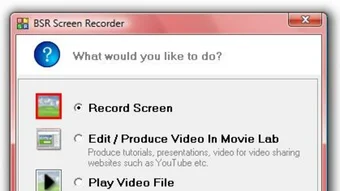
Upon opening, you'll be greeted by a clean, organized interface that displays all recording options. Begin by selecting your recording mode: full screen, window, or custom region. Next, configure your audio settings—choose between system audio, microphone, or both. If you're recording with a webcam, enable the webcam overlay and adjust the position and size. For advanced users, the settings menu allows you to fine-tune video resolution, frame rate (up to 60 FPS), and codec preferences.
To start recording, click the red record button. A countdown timer appears, giving you time to prepare. During recording, a small overlay shows the current status, including time elapsed and recording duration. When finished, click the stop button, and the software automatically saves the file to your chosen folder. If you want to edit your video, open BSR Studio or BSR Movie Lab from the main menu. These tools let you trim clips, add effects, insert text, and export in various formats like MP4, AVI, or MOV.
For users who want automation, the event-triggered recording feature can be configured in the advanced settings. Simply define the trigger condition—such as a specific application launch—and the recorder will start automatically. This is especially helpful for developers, testers, or anyone who needs to capture repetitive tasks without manual effort.
Compatibility and System Requirements
Bulent Screen Recorder is designed to work across multiple platforms, ensuring broad accessibility. It supports Windows 7, 8, 10, 11, and Windows Vista, making it suitable for both modern and legacy systems. Mac users can download the native macOS version, which integrates seamlessly with Apple’s operating system and supports Apple Silicon (M1/M2) chips. For mobile users, dedicated apps are available for both Android and iOS, allowing screen recording directly from smartphones and tablets.
The software is lightweight and optimized for performance, requiring minimal system resources. On desktop systems, it runs efficiently even on machines with 4GB RAM and older processors. For video recording, a minimum of 1GB of free disk space is recommended, though more is advised for longer sessions. The app supports a wide range of video formats, including MP4, AVI, MOV, and WMV, and allows export in HD (720p), Full HD (1080p), and even 4K resolution when supported by your hardware.
Audio input is compatible with most standard microphones and built-in system audio devices. The webcam recording feature works with most standard webcams and HD cameras, including those integrated into laptops. For users on older systems like Windows Vista, a dedicated installer is available on the official site, ensuring full functionality without compatibility issues. This cross-platform support makes Bulent Screen Recorder a reliable choice for users across different devices and environments.
Pros and Cons of Bulent Screen Recorder
- Pros:
- Free to download and use with no watermarks
- Supports simultaneous screen and webcam recording
- High-quality video and audio capture with customizable settings
- Includes built-in editing tools (BSR Studio & BSR Movie Lab)
- Event-triggered recording for automated capture
- Available for Windows, Mac, Android, and iOS
- Lightweight and runs smoothly on older systems
- Intuitive interface suitable for beginners and pros
- Cons:
- Limited advanced editing features compared to professional software
- No cloud storage integration for recorded files
- Mobile version lacks some desktop-level features
- Subtitles must be added manually during recording
- Occasional lag on very high-resolution recordings
Frequently Asked Questions (FAQ)
-
Is Bulent Screen Recorder free to use?
- Yes, Bulent Screen Recorder is completely free to download and use. There are no trial periods, hidden fees, or watermarks on recorded videos. You can record, edit, and export files without any restrictions.
-
Can I record my screen and webcam at the same time?
- Yes, Bulent Screen Recorder allows simultaneous screen and webcam recording, making it ideal for video tutorials, vlogs, and online presentations. You can adjust the webcam size and position on the screen for a professional look.
-
Does it support event-triggered recording?
- Yes, the software includes an event-triggered recording feature that starts recording automatically when specific system events occur, such as launching an application or detecting screen changes. This is perfect for automated monitoring and debugging.
-
Is Bulent Screen Recorder compatible with Windows Vista?
- Yes, a dedicated installer is available for Windows Vista users, ensuring full compatibility with older systems. This makes Bulent Screen Recorder accessible to a wider range of users.
-
Can I edit my recordings without external software?
- Yes, Bulent Screen Recorder includes BSR Studio and BSR Movie Lab, which offer basic editing tools like trimming, cropping, adding subtitles, and inserting music. These tools allow you to enhance your videos without needing third-party software.
Conclusion: Why You Should Download Bulent Screen Recorder Today
Bulent Screen Recorder is a feature-rich, free screen capture tool that delivers professional results across Windows, Mac, Android, and iOS. Whether you're a student creating study guides, a teacher preparing lessons, a content creator making YouTube videos, or a developer testing software, this tool meets your needs with ease. Its combination of high-quality recording, built-in editing, and automation features makes it a standout choice in the crowded screen recording market.
With no cost, no trial limits, and strong cross-platform support, Bulent Screen Recorder is one of the most accessible and reliable options available. The intuitive interface ensures a smooth learning curve, while advanced features like event-triggered recording and real-time subtitles add significant value for power users.
Don’t miss out on this powerful, secure, and regularly updated software. Download Bulent Screen Recorder today and take full control of your screen capture experience.
Guides & Tutorials for Bulent Screen Recorder
How to install Bulent Screen Recorder
- Click the Preview / Download button above.
- Once redirected, accept the terms and click Install.
- Wait for the Bulent Screen Recorder download to finish on your device.
How to use Bulent Screen Recorder
This software is primarily used for its core features described above. Open the app after installation to explore its capabilities.
User Reviews for Bulent Screen Recorder 0
No reviews found





